. SECURITIES,5,(MNP),2,(TDS)2007-08,1,`,1,01.07.12,23,01.09.2008,1,01.10.2012,2,06.07.2009,3,07.08.2012,1,1 PERCENT EXCISE ITEMS LIST,2,1 sep,1,1% excise,2,10 year nsc,7,10(10C),1,10(10D),1,10(11),1,10(12),1,1000 court cases judgements supplied to ITO,7,1000 rupee note,3,11-2008,1,11-2010,1,111A,2,130 items,1,14.08.2008,1,15 august,2,150 Rs coin,2,15g,14,15h,15,18-12-2009,1,192(1A),5,192A,2,194 I,3,194 IA,1,194A,7,194c from 01.10.2009,7,194H,6,194j,15,194LC,3,194N,1,194O,1,194q,2,1981-2007,2,2% cst,1,2% excise,1,2004,1,2008,1,2008-09 FY,1,2010,2,206AA,14,234A 234B 234C,10,234c interest calculator,11,234D,1,234E,16,234F,2,23AC,1,23ACA,1,23B,2,24C,3,24q annexure II,5,25 paisa coin,1,271(1)(c),5,271B,2,271H,4,272B,1,27A,1,280,5,280 challan,4,281,4,282,2,283,2,29 AUGUST,2,29.04.2010.,1,29/08/2008,2,29/2008 service tax,2,2g meaning use,1,3 idiots,1,30 MARCH,4,31st March,19,32-2010,1,33 of 2009,1,35(2AA),1,35(2AB),1,3CD,18,3g meaning use,1,40(b),4,43B,5,44 AB EXEMPTED INCOME,1,44AA,1,44AB AGRICULTURE,2,44AB new limit,29,44AB NON RESIDENT,3,44ad,19,44ada,3,46/2012 45/2012,1,49C,1,5 day week,1,5 years post office deposit,5,5/2011,1,50 paisa coin,2,500-1000 notes banned,128,54b,19,54EC,28,54ee,1,54f,22,54gb,1,5th paycommission punjab,1,6 % excise,1,6 crore advance limit,1,6/2005,1,69/2010,1,6th cpc,5,6TH PAY COMMISSION,6,70% of pan etds,7,7th Central Pay Commission,12,8 tips to save tax,2,80C,90,80ccc,3,80CCD,15,80cce,2,80CCF,18,80CCG,6,80d,10,80DDB,14,80EE,4,80EEA,1,80G,6,80GG,8,80GGA,6,80GGB,1,80ggc,1,80tta,5,80TTB,2,80U,2,85% of pan etds,1,86/2008 DATED 13-08-2008,1,87A rebate,8,89(1),22,89(1) relief calculator,19,9.5 % rate for private epf,8,92E,1,95% of pan etds,5,98 dated 04/01/08,1,aadhaar,18,aakash tablet,1,aam admi,1,aar,4,Aayakar Sampark Kendra,1,abatement,13,abolished,1,ACCOUNT PAYEE DRAFT,2,Accounting,1,ACCOUNTING CODE,11,accounting code for services,6,ACCOUNTING FOR GOVT GRANTS,3,accounting standards,12,ACES,10,ADD IN,1,Add-Ins,2,additional relief in budget 2010,1,adjustment of advance FBT with advance Tax,2,advance rullings,3,advance salary,2,advance tax,2,ADVANCE TAX CALCULATOR,10,advance tax challan,19,advance tax collections,1,ADVANCE TAX CUT OFF AMOUNT,12,ADVANCE TAX DATES,20,AFFIDAVIT,2,affordable housing,1,AG Projects Technologies Ltd RT,1,age 80 addition pension,2,aibea wage revision,1,aibea wage revision latest news,1,aiboa,1,aiboc,1,aiboc wage revision,1,AIG,1,AIR,10,airline ticket booking tds,7,airlines,3,all is well,1,allowances,5,allownces,4,alphabet of inspiration,1,alteration on check allowed,3,alternate minimum tax,4,AMENDED 3CD,12,amendment in companies bill 2011,2,amendment in gratuity act 2010,5,amendment in registration service tax,4,AMENDMENT IN SERVICE TAX ON RENT,6,amendment to finance Bill 2010,1,AMNESTY SCHEME 2007,2,amt,2,Anna Hazare,2,anna hazzare bill vs govt lokpal bill,1,appeal,15,apply for new pan card against old pan card,3,aqb,1,arbitration,2,arrears of salary,5,arrears of sixth pay,6,ARRERS TAX,2,AS-12,1,ASBA,1,assessee in default,2,ASSESSMENT REOPENING,8,ASSESSMENT YEAR 2008-09 REFUND,1,atm,13,atm 100 per day,2,atm cash without card,2,atm tips,9,atm wrong debit,1,audit cases itr filing,2,audit limit enhanced,13,Audit Questionaire,1,AUDIT REPORT,63,AUS VS IND.INDIA VS SL,1,Automated teller machine,1,AUTOMATION OF CENTRAL EXCISE AND SERVICE TAX,7,Axis Bank credit cards,2,ay 2010-11,1,bad debts,2,Balwant Jain,180,Bank,6,Bank account,15,bank audit,3,bank audit 2012,1,bank charges,19,BANK SALARY,2,bank strike 06/07/09 and 07/07/09,1,banking law amendment,1,banknotes,6,banks npa provisioning,4,BARE ACT,4,bare rules,1,BASE RATE BY BANKS,2,bcct,1,belated return,2,benami property,1,BIMAL JAIN,474,biometric pan card,3,black and white form not acceptable,2,black money,27,BLOCK PERIOD,1,blogging,1,bobay refund,1,BONUS,2,bonus share,2,book discount,5,BOOK ON EFILING,1,BOOK REVIEW,1,books of accounts,6,BOOMING INDIAN ECONOMY,3,both House rent allowance,10,both hra and house loan,15,Brass Scrap,3,BRIBE CASE,1,BROKER,3,BSE,1,bsnl broadband,1,bsnl broadband usage,1,bsnl land line sms alert,2,BSR CODES,3,BUDGET 2009,18,budget 2010,28,budget 2010-11,4,budget 2011,13,BUDGET 2012,38,budget 2013,17,BUDGET 2014,39,BUDGET 2014 CONTEST,6,budget expectations,8,BUDGET HIGHLIGHTS,11,budget live on computer,5,budget live telecast,5,budget notification,1,budget on tv,1,budget speech,16,BUDGET SPEECH DOWNLOAD,2,Budget-2014,2,Budget-2015,45,BUDGET-2016,71,budget-2017,28,BUDGET-2018,32,BUDGET-2019,22,BUDGET-2020,2,budget-2022,9,BUDGET-21,39,Budget-23,51,BUDGET08,5,BUDGET2018,1,Business,5,BUSINESS AND PROFESSION MEANING,1,BUSINESS COVERED UNDER 44ab,2,buy back,1,BUY HOUSE,5,C FORM,5,CA CAN ONLY AUDIT MVAT,4,CA CLUB INDIA,1,CA GIRISH AHUJA,3,CA NITIN GUPTA,5,CA PARDEEP JAIN,5,CA ROHIT GUPTA,4,ca services,3,CA sudhir Halakhandi,1,CA Swapnil Munot,15,CA Vikas Khandelwal,9,calculate arrear,1,CALCULATE NEW PAY,2,calculate your emi,4,calculation of tax on salary arrears,4,CALCULATOR,72,CALCULATOR REVISED,1,capital asset,4,capital formation huf,3,Capital gain,45,capital gain account scheme 1988,11,CAPITAL GAIN INDEX,30,capital gain on repayment of loan,2,capital gain on tenancy rights,1,capital goods,3,capital revenue,1,CAPITAL SUBSIDY,3,CAR LOAN,1,CAR LOAN RATE INCREASE,12,carry forward of losses in late return,5,cas,1,cash back,1,Cash credit,2,cash flow statement,1,CASH PAYMENT DIS ALLOWANCE,11,CASH PAYMENTS EXCEEDING 20000,5,CASH SUBSIDY,3,Cash Transaction 2016,8,cbdt,15,cbec,9,CBI ARRESTED,1,centeral sales tax rate,2,CENTRAL PAY COMMISSION,6,CENTRAL PROCESSING CENTER,2,CENTRALISED PROCESSING OF RETURNS,1,Cenvat,63,CENVAT Credit Rules,81,cgas 1988,3,challan,7,challan 281,10,CHALLAN 289,1,challan correction,8,challan Form 17,11,CHALLAN STATUS INQUIRY,1,change,1,change in cst rate,5,change in excise duty rates,11,CHANGE IN PAN ADDRESS,3,CHANGE IN PAN DATA,7,change in tds rates in budget,14,changes,2,CHANGES IN SERVICE TAX ACT,58,changes in Gst,1,changes in income tax,1,changes in new itr forms,11,CHANGES IN TDS,14,CHARGES ON CASH PAYMENT OF CREDIT CARD BILL,3,charitable organisation,5,check name from PAN,2,check tds deducted online,3,Cheque,12,cheque bounce,7,cheque payment before due date,8,cheque tender date /realisation date,4,Cheque Truncation,7,CHEQUE VALIDITY,9,child care leave,3,CHILD DEPENDENT PREMIUM,1,CHILD MARRIED PREMIUM,1,child plan,1,childeren name,1,children education allownces,10,chip based atm card,4,cibil,13,cibil for companies,5,CII 2007-08,1,CII 2008-09,2,CII 2010,1,cii 2012-13,1,CII2011-12,1,cin,2,CIRCULAR 3/2010 DT 2.03.2010,1,CIRCULAR 8-2010,1,CIT v. Emilio Ruiz Berdejo (2010) 320 ITR 190 (Bom.),1,cloning of atm card,1,clubbing of income,2,co-ownership,1,COLLECTION CHARGES,1,COLOR SCHEME,1,COMMISSION ON SMALL SAVINGS,2,common error in 2009-10,1,common error in itr 4-5-6,3,compa,1,companies bill 2012,2,COMPANIES RATE,2,COMPANY BILL 2011,6,company deposit,5,Company Law Settlement Scheme,5,COMPANY REGISTRATION,4,complusory payment of taxes,1,Composite rent,1,COMPOSITE SUPPLY,3,Composition scheme GST,15,Composition scheme service tax,2,compounding of offence,1,COMPUTER AS FAX MACHINE,1,computer sytem at ito office,1,CONCEPT PAPER,1,configure yahoo mail in outlook express,7,consolidate account statement,5,construction purchase of house,9,Consultancy Service,2,consumer loans,2,Consumer Price Index,2,consumer protection,1,continues services,1,CONTRIBUTION TO NEW PENSION SCHEME,10,CONTRIBUTORY PENSION FUND,3,CONVERT FIGURES INTO WORD EXCEL,8,COPARCENER,1,CORONA,8,CorpMcash,1,Corporate Social Responsibility,1,corporate tax,1,corporation bank,3,correction etds,10,CORRECTION IN PAN DATA,8,correction in section,4,CORRECTION RETURN,6,CORRECTION RETURN.ETDS,7,cost accounting,5,cost audit,6,cost inflation index,21,cost inflation index 2012-13,2,COST INFLATION INDEX FY 2010-11,1,COST INFLATION INDEX FY 2011-12,1,COST OF INDEXATION CALCULATOR,5,court case in entry tax punjab,2,covid-19,3,cpc phone number,6,cpf,7,Credit card,32,CREDIT CARD BILL PAYMENT ICICI BANK,6,credit scores,14,cricket team,1,critical illness,1,CROSSED DEMAND DRAFT,2,CRR,14,crr reducred,1,cryptocurrency,1,CS DIVESH GOYAL,69,CST,12,CST 3% OR 2 %,3,cst act 1956,1,cst form,6,CST FORM STATUS,1,cst rate changed,3,CST REDUCE RATE,4,ctt,3,currency,2,CURRENCY TRADING ILLEGAL,1,custom,4,custom changes in budget,18,cusual leave,1,DA MERGE,2,da rate,16,da rate 01.07.2012,4,da rate january 2013,4,da rate july 2012,3,da rate wef 01.01.2012,4,date extension,4,DDO ASK RENT RECIPT,1,ddt,4,dearness allowance,15,Debit card,11,DEBT EQUITY RATIO,1,debt funds,13,debt trap,3,declared goods,1,DEDUCTION 80C,6,deduction for higher studies,3,deduction on saving bank interst,2,deduction u/s 80DD,6,Deemed income of employee,1,deemed ownership,1,deemed services,1,defective return,4,defence officers,1,defence pay,1,defence pay scales,2,DELAY IN FILING,3,delete ledger in tally,1,DELHI HIGH COURT,11,demat,4,deposit tax of two quarter in single challan,3,depreciation,15,depreciation on car,3,depreciation on commercial vehicle.,2,DEPRECIATION ON INTANGIBLE ASSETS,3,depreciation rate,13,depreciation rate 2009-10,3,DETAIL AFTER E FILLING,1,DETAIL OF TIN,1,Determination of value,1,DIFFRENT TYPE OF TAXES,1,digital signature,10,din,4,direct payment in bank account,1,DIRECT SUBSIDY,10,direct tax bill,6,direct tax changes in budget,25,direct tax code,39,direct tax code 2009,6,dis,1,Disability insurance,4,discussion Paper,4,distribution of salary,2,dividend distribution tax,2,dividend striping,1,dnd,1,do not call.,1,document identification number,1,document ientification number,1,documents required for service tax registration,5,domestic transfer pricing,5,donation,3,dot,1,double taxation,1,dow jones,1,download,1,download 89(1) relief calculator,12,download direct tax code 2012,10,download form 16A,7,download fvu,28,download idfc INFRA BONDS FORM,1,draft reply,1,drawback rates,2,dtaa,4,dtc,10,DUE DATE AY 2010-11,2,due date ay 2011-12,3,due date extended,72,due date extended to 31.08.2012.,2,due date for service tax return,36,due date form 16,21,due date form 16a,10,due date June,2,due date march tax,11,due date of return 2008-09,3,due date pf esi,6,due date to deposit tds,15,DUE DATES,17,DUE DATES CALENDAR,8,DUE DATES CALENDER,9,DUE DATES INCOME TAX,23,DUE DATES SERVICE TAX,42,DUE FAMILY PENSION,1,DULICATE PAN,1,DUPLICATE TAN,5,dvat,8,e book Income Tax rules,3,e book on service tax,22,E ERA OF TAXES,1,e filing do and don'ts,7,e filing of audit report,10,e filing processing status,8,e filing software excel free,4,e filing through evc,10,e filing utilities,6,e mode for notice to shareholder,1,e notice to share holder,1,e payment of epf,5,E PAYMENT OF EXCISE DUTY,2,e payment of income tax,5,E PAYMENT OF SERVICE TAX,4,e payment of tds,8,E STAMP DUTY,1,e tutorial for TAN registration,3,E-1 FORM,1,E-1 SALE,6,e-commerce,1,E-FILE SERVICE TAX RETURN,18,e-Intermediary,1,e-payment from friends account,2,E-PAYMENT OF SERVICE TAX,9,e-payment of taxes,6,E-SEVA BY ICAI,4,e-TDS/TCS statements,2,E-WAY-BILL,15,earn from home,1,earned leave,2,Easy Exit Scheme,1,ebay,1,EBOOK,75,EBOOK ON SERVICE TAX,23,economic survey,9,economic survey 2010,3,economic survey 2011,2,economic survey 2012,1,Edible Oils,1,EDITABLE INCOME TAX FORM,1,education cess,6,EDUCATION LOAN,5,eet,4,EFFECTIVE DATE CST RATE REDUCTION,2,effective date of allowncs,2,efiling errors,5,efiling free,2,efiling income tax return,31,efiling of excise return,6,efiling registration problem,18,electric vehicle,1,Electricity act,2,ELECTRONIC FOREX TRADING,1,Electronic Gold Receipts,1,Electronic Verification Code (EVC),10,elegent card on holi,1,ELSS,20,EMANAGEMENT OF TAXES,1,EMI CALCULATOR,8,empanelment as branch auditor,2,EMPLOYEE PROVIDENT FUND,9,employee state insurance,2,employee state insurance act 1948,1,employee state insurance act Limit,1,employer e sewa,4,eMudhra Consumer Services,1,entries r off in 50 paisa,1,entries rounded off in rs,1,ENTRY TAX,5,entry tax punjab,2,epf,55,epf challan,33,epf claim,12,epf e passbook,8,EPF FAQ,33,epf int rate 11-12,6,epf interest exemption,11,epf interest rate,25,epf interest rate for fy 2010-11,8,epf limit,8,epf online,12,EPF ONLINE CHALLAN GENERATION,4,epf statement,6,EPF TRUST,1,epf withdrawals,12,epfo,44,equal monthly installments,2,equity funds,7,ER-1,2,ER-2,2,er4 form online,1,error in etds return,10,error in st-3,5,esi,7,esi contribution,3,esi limit 10000,1,esi limit 15000,4,esi limit from 01.05.2010,1,esi return,1,ESOP,5,ETABF,1,ETAX,2,etcs,10,etds,33,etds correction,17,etds defualts,2,etds due date,9,ETDS FVU 3.1,3,ETDS PAYMENT,3,ETDS Q4 ANN II,3,etds retur with insufficient pan,2,etds return,25,ETDS RETURN DUE DATES,24,etds return less deduction of tax.,2,ETDS RTEURN SOFTWARE,2,etds software,5,etds without pan,5,etrip,1,Excel,11,EXCEL 280,2,excel add in,1,EXCEL CII,5,excel form 16,10,EXCEL SHORT CUTS,9,excel software,2,excell add in,4,EXCESS TDS,7,Exchange-traded fund,3,exci,1,excise,10,excise changes in budget,19,EXCISE FORMS,1,excise notification,2,Excise on branded goods,2,excise on utensils,1,excise rate reduced,4,EXCISE REGISTRATION,5,exclusion from capital asset,1,exempted capital gain,6,EXEMPTION GST,3,exemption limit increased,4,EXEMPTIONS IN FEW SERVICES,2,exice duty on new items,1,EXIDE CASE CALKUTTA HIGH COURT,2,EXPANSION OF EXISTING SERVICE,1,EXPLANATORY NOTES TO FINANCE ACT(2) 2009,1,export,21,EXTENSIBLE BUSINESS REPORTING LANGUAGE,1,extra level security in credit card,2,face book url,1,face book username,1,facebook,2,fake prize money,3,family pension,9,FAQ,62,faq on fbt on esop,3,FAQ VAT,8,fast facts,1,father can claim for son studies,1,FAX FROM COMPUTER,1,FBT,6,FBT CALCULATOR,3,fbt challan,1,FBT ON ESOP,5,fc(r) ACT,1,fd interest rate,4,fdi in insurance and telecom,4,fdr,13,FEMA,3,FIGURES TO WORDS,2,fii,1,file free etds statement,1,file validation utility,3,Finance,86,finance act,9,Finance Act (2) 2009,2,finance act 2010,1,Finance act 2011,1,FINANCE ACT 2012,4,finance bil 2012,6,finance bill 2010,3,finance bill 2011,3,finance bill in lok sabha,8,finance bill top news,1,finance bill(2) 2009,1,Finance Minister,6,finance ministry,3,financial adviser,6,financial crises,1,FINANCIAL PLANNING,21,Financial Services,2,first class rail passenger fare from 01.10.12,3,first discussion paper on gst,5,first name in pan card,2,first quarter fringe benefit tax adjustment,1,fiscal cliff,1,FIVE IN ONE,1,FIVE IN ONE TAX CALCULATOR,1,Fixed deposit,24,fixed maturity plan,8,FLOW CHART ON FBT ON ESOP,3,fm speech on 07/05/2012,1,fmc,1,FMV OF ESOP,3,FMV UNLISTED COMPANY ESOP,2,FN 275-192-2009,1,FOREIGN COMPANT FBT ON ESOP,1,foreign direct investment,1,foreign dividends,2,foreign exchange money changer service tax,3,foreign individual in shares,1,Forensic Auditing,1,Forex derivatives tax,3,forex trading,3,forget password,2,Form 10E,2,form 12BA,1,FORM 16,22,FORM 16 A SOFTWARE,6,FORM 16A,15,FORM 16A FROM ETDS FVU,3,form 16A from fvu,1,form 16a from nsdl,6,FORM 16A GENRETION SOFTWARE,3,FORM 16A PDF,2,fORM 16aA IN FIVE MINUTES,1,form 18 punjab vat act,1,form 26as,34,form 26q,4,form 26q online free,4,form 29C,1,form 49a excel/pdf/online,5,formation of huf,15,forum site,1,FORWARD CONTRACTS ACT 1952,1,fpo,1,fraud mail,4,free auto filler for epayment of taxes,4,FREE CHALLAN SOFTWARE,2,free e filing Income tax return 11-12,2,free epayment auto filler of challan,3,free etds return,12,free etds software,7,FREE INCOME TAX ACT,2,free income tax return,3,free itr-1,8,free itr-2 e filing,3,Free online Books of Direct Tax for F.Y.2008-09,2,free online greeting card holi,1,free samples,2,FREE SOFTWARE,1,FREE SOFTWARE FOR ETDS,4,FREE TOOLBAR WITH SEARCH,2,Fringe Benefit Tax,2,full partition of huf,2,future and options,8,fvu,8,FVU 2.130,1,FVU 2.131,1,fvu 2.216,1,fvu 3.0,1,fvu 3.2,1,fvu 3.3,2,fvu 3.4,1,GAAR,8,GAIN ON SALE OF SHARES,17,GAR-7,2,gas cylinder,1,GAZETTE NOTIFICATION,4,gdp,1,General anti avoidance rule,4,general insurance,1,general provident fund,1,generation company,1,GIFT BY NRI,5,gift deed to huf,8,gift from relative,14,gift in kind,15,gift on marriage,10,gift tax,19,gmail,2,Goal calculator,2,gold bond scheme,17,gold deposit scheme,9,GOLD LOAN,11,Gold Monetization Scheme,10,gold silver rates 10 years,4,Goods and Services Tax,22,GOODS TRANSPORT AGENCY ABETMENT,10,goods transport agency service tax,10,GOOGLE SEARCH,1,google tool bar,1,Gopal Kumar kedia,1,got approved from president,1,GOVT NOTIFICATION CST,2,gpf interest rate,5,gpf interest rate 8.6 %,1,gpf interest rate 8.8 %,1,gratuity,13,gratuity limit enhanced,6,Green-channel banking,1,GREETING CARD ONLINE,3,GROSS RECEIPT MEANING 44ab,7,GST,651,GST ADVANCE RULING,1,GST ASSESSMENT,1,GST CHALLAN,8,GST Council,1,GST INVOICE,15,GST ON INSURANCE PREMIUM,1,GST PAYMENT,7,GST RATE CHART,40,GST REFUND,4,GST REGISTRATION,7,GST RETURN,75,GST SUGGESTIONS,3,GST TDS,5,GTA,14,guarantee Nav,1,guidelines for selection of cases,3,gujrat vat act,2,half pay leave,1,HAPPY DIWALI,5,HAPPY NEW YEAR,6,HBA-HRA,8,hdfc bank,5,HDFC Credit Cards,1,Health care,2,Health insurance,19,health plans,4,health service,2,help on tax,1,HIGH VALUE TRANSACTION,6,HIGH-VALUE TRANSACTIONS,3,HIGHER SECONDARY CESS,6,HIGHER TDS WITHOUT PAN 01.04.2010,4,HINDU UNDIVIDED FAMILY,17,hiring motor vehicle,2,holi card,1,holiday,5,holiday on election day,4,holidys,2,Home insurance,5,home loab,1,HOME LOAN,40,hospitals,1,house budget,3,house completion,3,house loan 150000 or 30000,5,house loan and tax svaing,21,house loan at discounted rates,7,house loan on two houses,8,house loan reduuced,2,house property,10,house valuation,5,house wife,1,how to calculate income on salary,1,how to calculate new basic,1,how to calculate new da rate,5,how to claculate income on salary,9,how to file correction statement,6,HOW TO FILE RESPONSE TO INCOME TAX DEPARTMENT,1,how to fill date column in punjab vat form 18,2,HOW TO FILL ITR-2,3,how to fill tds challan 280,9,how to invest in Mutual funds,8,how to pay service tax online,4,HOW TO SELECT ITR FORMS,2,How to use atm,5,HRA and house loan,14,HRA AND TRANSPOT DEDUCTION IN Q4 SALRY RETURN,2,HRA CALCULATION,10,HRA CALCULATOR,11,HRA EXEMPTION,2,HRA EXEMTION,6,HRA FAQ,8,HSC ACC CODE,3,huf and 54B,5,HUF CAPITAL,6,HUF CONTRACT POWER,1,huf creation deed,4,HUF DEFINITION,5,huf formation,5,HUF KARTA,5,huf member name,2,HUF PARTITION,5,HUF TYPE,2,ICAI,66,icai suggestions,6,ICAI tool bar,5,ICDS,2,ICES,1,ICICI Bank's credit card,1,ICICIBANK CREDIT CARD,8,idfc infra bonds,3,ifci,3,IFRS,4,ifsc,1,iifl,2,immovable property,12,IMPACT OF GST,71,implementation of report,2,import,3,IMPORTANT DUE DATES,7,INCOME FROM HOUSE PROPERTY,24,Income from Mutual funds.,14,income from other source,1,income from share equity,15,income processing pending,1,Income tax,12,income tax slabs fy 2008-09,1,INCOME TAX ACT,2,INCOME TAX ACT EBOOK,2,income tax act tds 194C,3,Income tax benefit in budget,1,INCOME TAX CALCULATOR,23,INCOME TAX CALCULATOR 09-10,5,income tax calculator 12-13,2,Income tax calculator 2011-12,3,income tax case selection,1,income tax changes in budget 2010,1,income Tax circular,2,income tax circulars from 1961,1,income tax code 2009,1,income tax due date extended,5,INCOME TAX FORM FILLABLE,1,income tax forms,5,income tax help tool bar,2,income tax notice on late deposit of tds,1,Income tax notification,4,income tax notification from 1961,1,income tax office,4,income tax payment through atm,1,income tax rate chart. i tax rates 12-13,3,income tax rates after budget 2012,2,income tax rates fy 2013-14,1,income tax refund,32,income tax return,38,INCOME TAX RETURN 16-17,15,INCOME TAX RETURN 20-21,11,income tax return 2011-12,9,INCOME TAX RETURN 2015-16,65,Income Tax return 23-24,2,INCOME TAX RETURN AY 18-19,15,income tax return due date,20,INCOME TAX RETURN EXEMPTION,6,income tax return form,5,INCOME TAX RETURN FORM 12-13,16,INCOME TAX RETURN FORM EXCEL,4,income tax return form itr-2,1,income tax return last date,5,Income tax rules,7,INCOME TAX SLAB,12,income tax slab in dtc,1,income tax slabs,7,INCOME TAX SLABS AFTER BUDGET,4,income tax ules 9th amendment,1,INCOME WISE ITR FORMS,2,INCOME-TAX-RETURN-AY-17-18,18,INCOMETAX 6TH PAY,2,inconsistancies in etds returns,10,inconsistencies in etds returns,3,IND AS,1,ind-as,3,INDEMNITY BOND,1,India against corruption,3,india budget,2,INDIA VS AUS,1,India win world cup,1,INDIAN BANK CHARGES,7,INDIAN INCOME TAX CALCULATOR 2007-08,1,indian rupee,3,indirect tax proposals,4,INDIVIDUAL HUF TAX RATES,5,indusind bank,1,INFLATION INDEXED NATIONAL SAVING SECURITIES,1,infosys,1,infra bonds limit increased,1,infrastructure Bonds,13,inoperative accounts,8,INPUT SERVICES,4,INPUT TAX CREDIT,19,instruction no 9/2010,1,INSTRUCTION TO FILL ITR-2,1,Insurance,16,insurance claim,2,Insurance policy,10,intangible assets,1,INTER BANK MOBILE TRANSFER,7,inter haed loss adjustment,3,interest,1,interest free laon,2,Interest from bank,3,interest on borrowing capital,3,INTEREST ON HOUSE LOAN,37,INTEREST ON LATE DEPOSIT,13,INTEREST ON LATE GRATUITY PAYMENT,1,interest on ppf account,16,interest on self occupied house,1,interest on small savings,10,interest rate on late deposit,3,interest rate on tds late deposit,4,interest taxable on saving,3,interim budget,7,internal auditor,1,international taxation,7,INTIMATION U/S 143(1),6,Investing,4,Investment,5,investment in shares,2,Investment management,6,investment yogi,1,IPL 2011,1,ipo,5,IRDA,22,irds,1,it calculator 2009-10,1,itat,5,Itax calculator ay 2011-12,2,itax calculator fy 10-11,1,itns 280,2,itns 281,1,itns 282,1,itns 283,1,itns281,2,itr -3 excel 2010-11,1,ITR 11-12,2,itr 2 excel,2,itr 2 rpu,3,ITR 23-24,1,itr 4 e filing utility,4,itr 4 fy 2010-11,1,itr 4 rpu,1,ITR AY 18-19,15,ITR EFILING SOFTWARE,10,ITR FORM 12-13,5,itr form 13-14,16,itr form 2 ay 2011-12,1,itr form 2008-09,4,itr form 2011-12,4,itr form 2013-14,1,ITR FORM AY 19-20,7,ITR FORM SAHAJ,17,ITR FORM SELECTION,4,ITR FORM SUGAM,6,itr forms,24,itr forms ay 2009-10,4,ITR RPU 2010-11,2,ITR RPU AY 2008-09,2,ITR RPU AY 2009-10,1,ITR SOFTWARE,3,itr sugam,6,ITR V STATUS,4,ITR WORD FORMAT,1,ITR-1,2,itr-1 2010-11 ay,6,ITR-1 EXCEL 08-09,2,ITR-1 EXCEL 11-12,1,ITR-1 rpu in excel free,1,ITR-2 AY11-12,2,ITR-2 EXCEL 08-09,2,itr-2 excel 2010-11,4,ITR-2A,1,ITR-3 EXCEL 08-09 AND ITR 4 EXCEL 08-09,1,itr-3 rpu,1,itr-4 efiling .itr-5 efiling,5,ITR-4S SUGAM,4,ITR-5 EXCEL,2,itr-6,1,ITR-7,2,ITR-V,27,itr-v status,19,ITUR FORM SUGAM,1,jan 2012 da rate,3,jan lokpal bill,5,jan lokpal vs lokpal bill,2,JAVA BASED INCOME TAX RETURN FORMS,1,JCO,1,Jewellery,6,job switch,2,Job work,11,joint employment,1,joint name,4,judicial decision,1,karnataka high court case,5,key highlights,1,kisan vikas patar,4,KKC,3,KNOW ALL ABOUT TDS,1,KNOW PAN STRUCTURE,7,know the ip address of sender yahoo mail,3,KNOW YOUR,10,KNOW YOUR CST NUMBER,5,know your customer,6,KNOW YOUR DIVISION CODE,1,know your epf balance,12,know your ip address,1,KNOW YOUR LOCATION CODE,2,know your pan,28,know your pan address,2,KNOW YOUR PPF,12,know your refund status,20,KNOW YOUR REFUND STATUS ONLINE,10,KNOW YOUR SERVICE TAX NUMBER,9,know your tax deducted,2,know your tax deposited,2,KNOW YOUR TIN,8,KNOW YOUR VAT/TIN NUMBER,4,Krishi Kalyan Cess,15,krishu kalyan cess,1,KV Kamath,1,kvp,7,kyc,13,LAHMAN BROTHERS,1,land lord pan must,2,laptop,1,LARGE TRANSACTION,3,last date to deposit tds,1,LAST DATE TO FILE ETDS RETURNS,2,last date to file itr 2007-08 extended,1,late deposit of tds,2,LATE FILING OF ITR-V,20,late funishing of return,5,late payment of service tax,4,latest depreciation rates,9,latest income tax circulars,1,latest income tax notification,1,latest notification,3,latest tds rate chart,24,leave,2,leave encashment,10,LEAVE TRAVEL ASSISTANCE,7,Leave Travel concession,8,less,1,liaison office,1,lic,8,lic jeevan vaibhav,1,LIC JEEVAN VRIDDHI,2,lic table 145,1,Life insurance,49,life insurance agent,10,life insurance broker,4,LIFE INSURANCE POLICY,41,LIFE INSURANCE POLICY AND TAX SAVING,21,LIFE INSURANCE PREMIUM,19,Limit for court case,3,Limit of gratuity under income tax,6,LIMIT UNDER SECTION 44AF,2,LIMITED LIABILITY PARTNERSHIP,8,liquidity crises,2,list of taxable service,2,LIVE BUDGET STREAM 2011,1,LLP,9,LLP RATES,1,loan against fdr,4,loan against property,2,loan eligibility,2,loan for higher education,3,LOAN ON PPF,5,loan repayment period calculator,1,LOAN RESOLUTION,1,LOAN SECURITISATION,1,Lok sabha election results/trends all states and all seat,4,lokpal bill,2,long term capital gain,22,low cost laptop,1,lpg,6,lt infra bonds,1,LTC BY AIR,7,LTC OUTSIDE INDIA,2,LTCG,9,lucknow chartered accountants,1,macro,2,Mahila Samman Bachat Patra,2,mail frauds,1,mail scams,1,mandap keeper,5,mandatory e filing service tax return,15,mandatory epayment of taxes,12,Manoj Agarwal,9,manpower,9,marked to market,1,marketable product,1,MasterCard,6,mat,3,maternity leave,3,MCA-21,15,McDowell and Co. Ltd. (154 ITR 148),1,meaning of transfer in capital gain,1,meanings of finance terms,6,medical insurance premium,14,MEDICAL OFFICER,3,medical u/s 80D,28,MEET,1,MENREGA,1,merge ledger in tally,1,MICR CODE,5,Microsoft,5,Microsoft Excel,7,military pay,2,minimum alternative tax,9,minimum balance,5,minimum experiance for bank branch auditor,1,minimum experience for bank branch auditor,1,minimum service,1,minimum wages,5,Minor income,2,mip,1,mis matching,12,MISTAKES IN ETDS RETURN,5,mistakes in itr,1,mistakes in return filling,1,MIXED SUPPLY,2,Mobile Number Portability,5,MOBILE WALLET,1,Money,3,MONEY MATTERS CASE,1,Money Mistake,2,monthly income plans,3,monthly income scheme,8,MOTOR INSURANCE,2,MRTP,2,ms excel,1,MS OFFICE,2,MSME,4,multipal challan,2,multiple pan,2,Mutual Fund,58,mutual funds and tax,29,MVAT AUDIT,7,mvat audit form 704,4,Nabard Bonds,2,name break up in pan,1,nandan nilekeni,1,NATIONAL ELECTRONIC FUND TRANSFER,1,National Identification Authority,1,NATIONAL SAVING CERTIFICATE,3,NAV,1,NEFT,11,NEGATIVE LIST FOR TAX ON SERVICES,31,Net asset value,3,net banking,3,new excise return form,3,new 194 c,5,NEW BASE RATE INTEREST,1,NEW BASIC AND GRADE PAY,2,new basic formula,1,new coin,1,new cut off limit for TDS,2,new da rate,10,new deduction,3,NEW EST-1,1,new etds requirement,1,NEW EXCISE DUTY ITEMS,2,New Foreign Trade Policy,4,NEW FORM ITR FY 2010-11,1,new fuv 2.110,1,new fvu 2.128,3,new income tax act,1,new income tax calculator,5,NEW INCOME TAX RATES,30,new income tax return form 2010-11 itr-1,3,new income tax return form 2010-12 itr-1,1,New Infosys Chairman,1,new itr form,6,NEW ITR FORM AY 2011-12,3,new itr forms,14,NEW ITR FORMS EXCEL,6,new jeewan dhalan,2,NEW PAN APPLICATION,13,NEW PAN CARD,8,NEW PARTNER ADDED,1,NEW PAY BAND,2,NEW PAY SCALE FOR UNIVERSITIES COLLEGES,1,NEW PAYSCALE FOR PROFESSOR LIBRARIAN DPE,1,new pension scheme to govt employee,16,NEW RUPEE SYMBOL,5,new rupee symbol font,2,new sahaJ tax form,5,new section 44AF,2,new service tax rate 12.36,6,NEW SERVICES UNDER SERVICE TAX,8,new tax form,1,NEW TAX RATES,5,new tds rate 2010-11,10,new tds rates fy 2009-10,11,new tds rules applicable.,8,NEW TDS RULES FY 2010-11,4,New Year's Day,1,newly weds,1,nhai bonds,4,nhai capital gain bond,4,nhai tax free bonds,4,nifty,1,nil etds challan,4,nil etds return,5,nil tds on transportor,5,Nishant Batra,2,no return for salary,2,No.402/92/2006-MC (10 of 2008),1,nomination,1,non deduction certificate,1,non deposit of TDS,1,non performing assets,1,NON RESIDENT INDIAN,16,NOR,1,note security features,3,NOTES ON 3CD,10,notice of meeting through email company,1,notice pay,5,notices etds,2,notification 19/2008 service tax,1,Notification 19/2009-ST,1,notification 22/2011,1,notification 23/2011,1,notification 24,1,NOTIFICATION 25/2012,7,Notification 26/2011,1,notification 3-2011,1,notification 32/2009 dated 27.03.2009,1,NOTIFICATION 36/2011,2,NOTIFICATION 41 DT 31.05.2010,1,notification19.03.2012,2,npa norms,3,NPCI,1,NPS,39,NRI,29,nri investment indua,4,NRI.PIO,17,NSC ACCRUED INTEREST,16,NSC INTEREST CALCULATOR,9,nsc.,12,NSDL,4,NSE,2,NUMBER TO TEXT,1,numbers in to text,1,OCI,3,official notification,1,official website,2,oidar,1,oltas,4,one increment,2,ONE RANK ONE PENSION,1,one thousand rupee note,2,online,1,ONLINE BALANCE CHECK EPF,4,online bsnl bill verification,2,online deposit of tax,7,online earning,1,online emi calculator,1,online employee provident fund,3,online epf balcnce,8,online filing of service tax return,14,ONLINE FOREX TRADING,1,online life insurance,6,ONLINE PAN,3,online pan verification,3,online rectification itr,2,online refund,16,ONLINE REFUND STATUS,7,ONLINE REGISTRATION OF COMPANY,2,online return rectification,2,online service tax,2,online services by Govt,1,ONLINE ST-3,7,online tan regsitration,6,online tds payment,4,ONLINE VAT,2,opc,2,OPEN OFFER,1,option date,2,orop,1,other forms,1,other income to employer,4,out of debt,2,OUTPUT SERVICE TAX CREDIT,1,OUTSTATION CHARGES,2,own name,1,PACKAGE SOFTWARE,2,PAN,6,PAN ADDRESS,5,pan and income tax return,1,PAN AO CODE,6,pan application excel,4,pan correction,2,pan details,1,PAN LEDGER,8,pan login,7,pan mandatory for hra,2,pan mandatory in etds,2,pan name verificatio,3,PAN ON RENT RECIPT,1,pan regsitration,2,PAN STATUS NSDL,2,PAN STATUS UTI,1,PAN STRUCTURE,4,PAN SURRENDER,2,pan transfer,1,pan verification,8,pan vs return,1,parcel,1,PARNERSHIP,1,part time course tuition fees,3,part of the year employee form 16,2,part of the year employee form 24q,3,partial reverse charge in service tax,25,partial withdrawal,3,partner salary,5,PARTNERSHIP DEED,5,PARTNERSHIP RATES,1,passport,1,PASSWORD,4,PATENT,1,pay bands,3,Pay calculator,3,pay calculator revised,1,pay commission punjab,1,pay fixation examples,2,pay per post,1,PAY SERVICE TAX ON DUE BASIS,5,payable at par,1,paybands,1,payment bank,1,PAYMENT BY ACCOUNT PAYEE CHEQUE,4,payment by cheque income tax,2,payment due date reminder,1,payment exceeding 20000-35000,1,payment of gratuity act,6,paypal,1,paypal ceiling,1,PDF UTILITY,4,penalty for service tax,8,penalty if cheque cleared late,4,penalty on concealment of Income,7,penalty on late filing non filing of etds return,8,penalty on late filing of income tax return,21,pension,14,pension arrear,2,pension calculator,4,pension da,1,pension fitment,1,pension gazette notification,1,pension notification,1,pension on grade pay military pay,2,pension policy,3,pensioner benefit,3,Permanent account number,8,PERSONAL ACCIDENT INSURANCE,3,personal finance software,3,personal loan,6,PETROL DIESAL SAVE FISCAL DEFICIT,8,PETROL DIESEL PRICE HIKED,12,PETROL EXPENSES VALUATION,8,petrol prices reduced,5,PFC,1,PFC INFRA BONDS,2,PFC TAX FREE BONDS,2,pfrda,2,PHONE BANKING,2,phone password,1,pin,1,pivot tables,3,Place of Provision of Services Rules,4,PLAYER AUCTION,1,pmay,7,pmjdy,11,PMS,2,pmvvy,2,pnr,1,Point of sale,8,POINT OF TAXATION,45,political party deduction,2,Poppy Seeds,1,portfolio,1,POST GRADUATE TEACHER,1,post office fixed deposit,9,post office recurring deposit,10,post office saving deposit account,6,post office schemes,15,postal ballots,1,postal order,2,POWER FINANCE BONDS,2,POWER OF ATTORNEY,1,PPF,39,PPF CALCULATOR,16,ppf huf account,4,ppf interest rate,19,ppf limit,25,ppp,1,ppt,8,ppt fbt,3,ppt on budget 2011,1,PPT UP VAT,1,pranav mukharjee,1,pre construction interest,3,PRE EXISTING E-1 TRANSACTIONS,1,pre filled challan income tax,1,prepayment,1,prepayment penalty,4,press release,1,press release 14.08.2008,3,presumptive tax scheme,15,preventive health check up,4,PRIMARY TEACHER,1,PRINCIPAL,1,printing manual,1,private limited company,10,PROF. TAX,1,profession tax,2,PROFIT RATE UNDER 44AF,1,provident fund dues,1,PROVISION OF FBT ON ESOP,1,provisioning of npa,2,PSPCL,1,PSTCL,1,PSU PAY HIKE,2,public limited company,2,public provided fund,9,PUBLIC SHARE HOLDING IN LISTED COMPANY,2,punjab govt arrear calculator,1,PUNJAB VAT,21,punjab vat notification,16,purchase of residential house,1,pure agent,1,qfi,1,quarterly statement status,3,QUIZ,9,rail freight,6,railway budget,12,railway budget 2012,2,railway ticket,9,RAILWAYS BUDGET 09-10,2,RAILWAYS BUDGET 11-12,1,rajiv gandhi equity saving scheme,13,RAJKUMAR S ADUKIA,4,ramalingam,15,Rate of return,1,RATES AFTER BUDGET,1,rates of service tax,3,rbi,83,RBI ACT,22,RBI Circular on e-payment of taxes,2,RBI FALSE CALLS,9,RBI FALSE MAIL,5,RBI INSTRUCTIONS GAR-7,1,RBI MONETARY POLICY,13,rbi monetary policy 2012,2,RBI NOTIFICATIONS,7,rbi report on customer services,2,ready reckoner income tax,4,REAL ESTATE,10,Real Estate Investments,4,REAL TIME GROSS SETTELEMENT,1,reason for mis matching,6,REBATE ON INPUT GOODS AND SERVICE,3,REC Bonds,3,rec infra bonds,1,rec tax free bonds,2,recent,210,rectification of return online,4,reducction in crr,1,refinance calculator,3,refund,8,refund due to diff in valuation of perquisites,3,refund of service tax on cancellation of tickets,4,refund pilot scheme,4,refund without matching,6,registration charges tax saving,1,RELIANCE COMMERCIAL FINANCE,1,RELIANCE GOLD LOAN,3,RELIANCE LIFE INSURANCE,3,RELIANCE MUTUAL FUNDS,1,relief calculator 2010-11,1,relief calculator fy 2011-12,1,REMUNERATION TO PARTNERS,8,RENT,1,rent a cab,2,RENT RECIPT,1,RENTING OF IMMOVABLE PROPERTY AFTER 01.07.2012,8,RENTING OF IMMOVABLE PROPERTY AFTER BUDGET 2010,5,repayment of housing loan,1,REPLY TO CPC FOR NOTICE,11,REPO RATE,12,Reserve Bank of India,2,reset password,1,RESIDENTIAL STATUS,4,RESOLUTIONS,1,response to outstanding demands,3,RESTAURANT,10,restricted leave,1,retail investor,4,retirement planning,9,retirement steps,2,Retiring early,1,retrospective amendment,1,RETURN EXEMPTION SALARIED CLASS UP TO 5 LAKH,6,RETURN FILING DATES,1,return filing in odd conditions,1,return for contractors tax deducted,1,return not required with pan,1,return of income,1,RETURN PROCESSING,4,RETURN UP TO 5 LAKH,5,RETURN UPTO 5 LAKH,2,REVENUE STAMP ON CHEQUE PAYMENT,4,REVENUE STAP ON RECEIPT,1,reverse charge on works contract,17,REVERSE CHARGE GST,57,reverse charge of service tax,43,reverse mortgage,3,reverse of 80C benefits,3,REVERSE REPO RATE,12,REVISE RETURN,4,revised option date,1,revised pay calculator,3,revised return,6,REVISED SCALE,1,rewards,1,rgess,9,rich,1,right to reject,2,RPF,5,rpu,9,rpu 1.7,1,rpu 2.2,2,rpu 2.5,1,rpu 2.7,1,RPU 3.00,1,rpu 3.1,1,RPU ITR 2011-12,1,rpu2.8,1,RTGS,13,rti,2,rti fees,2,rule 12 of income tax return.,10,RULE 2A,1,rule 4A,2,rule 6(4A),1,rule 6(b),2,rule 6DD,5,rule of 72,1,rule3,2,rule40BA,1,Rupay,2,RUPEE SYMBOL,4,s,1,safety tips for atm,4,SAHRE SHORT TERM CATIAL GAIN,6,salary calculator,7,SALARY ETDS Q4,5,salary in new direct tax code,1,salary structure,3,salary tds,8,sale in transit,4,sale of agriculture land,8,SALE OF DEBENTURE,1,sale of residential house,2,SALES MEANING 44AB,5,Sales tax,1,samsung case,3,saral 2,3,saral II,1,SARAL II IN EXCEL,1,Satyam,1,Satyamevjayate,1,SAVE TAX,2,SAVING ACCOUNT,6,saving bank interest,18,saving bank interest rate,2,saving linit u/s 80c,8,saving more than income,2,SAVING PASSBOOK,1,sbi 9.75 % bonds,1,SBI bonds,1,sbi home loan,4,SBI interest rates,10,sbi net banking,4,sbi rates,6,SBIOAHC,1,SBS WIKI,1,SCAM,2,schedule VI companies act,2,SCOPE OF ETDS STATEMENT,1,SCOPE OF SERVICE ENLARGED,1,SCOPE OF SERVICES WIDENED,1,scrutiny fy 11-12,3,scrutiny selection,17,search income tax,5,seat wise/constituencies wise and party and party candidate wise latest position,1,sebi,24,SEC 194 C,5,SEC 194 I,10,sec 194 J,4,secion 80c,4,SECRETARIAL STANDARD,3,secrutiny of itr,1,section 10(10AA),1,SECTION 10(13A),4,section 10(38),3,SECTION 10(5),1,section 139(1),1,section 139(4),1,section 139(5),1,Section 14,1,SECTION 145,3,section 154 return online income tax,4,section 16(iii),1,section 189,1,section 192,8,section 194-J,6,SECTION 194A,4,section 195,11,SECTION 195A,1,section 197,5,SECTION 2(37A),1,section 201(1A),3,section 203(3) section 206(C)(5),5,section 205,1,SECTION 24(b),8,section 269SS 269T,6,section 270A,5,section 271(1)(c),1,section 282B,1,Section 36(1)(vii),1,section 40(a)(ia),13,SECTION 40A(3),12,section 43(5),1,SECTION 44AB 2007-08 LAST DATE,4,section 44AB limit,14,SECTION 44AE,6,SECTION 44AF,2,Section 50,1,Section 50C,2,section 54,30,section 54f,9,SECTION 60,1,section 616(c),1,SECTION 64,1,section 66B service tax,4,section 68,2,Section 73,1,section 80 M,2,section 80c,3,section 80CCF,7,section 80D,18,section 80E,9,secured code master card,5,Securities and Exchange Board of India,1,security features,1,sehaj,1,self assessment tax,5,Seminar on service tax changes,1,Senior citizen,19,Senior Citizens Savings Scheme 2004,19,service charge,3,service ta,1,SERVICE TAX,45,service tax code,1,Service Tax (Removal of Difficulty) Order,1,SERVICE TAX 2010,1,service tax ac class,1,service tax accounting code,5,service tax adjustment,1,service tax audit,10,SERVICE TAX CHANGES FROM 01.07.2012,46,service tax changes in budget,58,Service TAX CLARIFICATION,17,SERVICE TAX COMPLIANCE,1,SERVICE TAX DEPOSIT DUE DATE,9,SERVICE TAX DUE DATE,6,Service Tax excel pdf word,1,SERVICE TAX EXEMPTION LIMIT,9,Service Tax Form excel pdf word,3,SERVICE TAX FORMS,1,service tax internet banking,1,service tax notifications,5,SERVICE TAX ON LAW FIRM ADVOCATES,3,service tax on transportation of passengers by air,2,service tax on advocates,5,SERVICE TAX ON BROKERAGE,2,service tax on ca,2,service tax on coaching,4,service tax on construction services,23,service tax on director services,5,SERVICE TAX ON DISTRIBUTION OF ELECTRICITY,2,SERVICE TAX ON EDUCATIONAL SERVICES,4,service tax on gta,7,service tax on health services,4,service tax on hotel clarification,12,SERVICE TAX ON HOTEL ROOM RENT,10,service tax on invoice basis,5,service tax on lawyers,1,SERVICE TAX ON LEASING,1,SERVICE TAX ON PACKAGE SOFTWARE,1,service tax on railway freight,8,SERVICE TAX ON RENT,6,service tax on road,4,service tax on transmission distribution of electricity,4,service tax on work contract tax,9,service tax on wrong head,1,service tax onr eimbursements,1,SERVICE TAX PAYMENT,6,SERVICE TAX PROCEDURES,3,SERVICE TAX RATE CHART,12,service tax rate effective date,12,service tax rate reduced,5,service tax rates increased,21,SERVICE TAX REGISTRATION,12,SERVICE TAX REGISTRATION LIMIT,4,SERVICE TAX RETURN,34,SERVICE TAX RULES,11,service tax section 65(105)m,1,SERVICE TAX VOLUNTARY COMPLIANCE ENCOURAGEMENT SCHEME,17,SERVICES CHARGES OF BANKS,2,SERVICES TAXABLE,5,servicetax,1,set off in same head or other head.,10,sevice tax on associate enterprises,2,sez,6,share,3,share market,3,SHARE SHORT TERM Capital GAIN,10,share transfer,1,share your thoughts,1,SHOME COMMITTEE REPORT,3,Short term capital gain depreciable Assets,1,SHORT TDS,1,SHORT TERM ACCOMMODATION,1,short term capital gain 15 %,10,silver,1,SIM CARD,2,SIMPLE TAX CALCULATOR,2,single premium policy,2,sip,8,SIXTH COMMISSION,2,sixth pay commission,17,skimming,1,slider based EMI calculator,1,SLR,4,small saving schemes,18,small service provider,1,smart buying tips,1,software import,1,son eduction loan father,1,speak asia,3,speak asia fraud,2,speak asia online,2,speed clearing,3,spending habits,1,SPF,8,splitting of wages,2,Spreadsheet,2,SRVICE TAX CLARIFICATION,9,ss patta,1,ST-1 EXCEL,4,ST-2,2,ST-3,12,stamp duty,3,STANDARD DEDUCTION,6,standing committee,1,startup india,2,State Bank of India (SBI) Cards,1,status of return,1,STATUS OF TAX DEDUCTED,1,statutory audit,7,stay on demand notices,4,STCG 10% 15%,12,STGC,1,Stock,1,STOCK EXCHANGE,1,STOCK MARKET FROM 9.00 AM.,1,STOCK MARKETS,1,stp,1,STRUCTURE AND VALIDATION OF PERMANENT ACCOUNT NUMBER,2,stt,7,stt challan,1,sub contractor,3,SUBPRIME CRISES,2,success secrets,1,sugam,4,Suggestion on Budget-23,35,Sukanya Samriddhi Account,11,SUPREME COURT,2,SUPREME COURT RENT,7,sur name in pan,1,surcharge cess on tds,4,Surrender-Cancellation of Service Tax Registration,1,survey income tax,5,SWACHH BHARAT CESS,12,swiss bank,1,Systematic Investment Plan,6,tally 7.2,3,tally 9,5,tally easy,3,tally erp9,6,tally recycle bin,3,tally shortcut,10,tally simple,8,tally tips,5,TAN,3,TAN STRUCTURE,1,Tariff Value,1,Tax saving,4,tax accounting standards,4,TAX AMNESTY SCHEME,4,tax benefit from budget,2,TAX CALCULATION,4,TAX CALCULATION 2008-09,1,TAX CALCULATION FORMULA ADDIN EXCEL,2,TAX CALCULATOR,1,tax calculator 10-11,2,TAX CALCULATOR 2008-09,1,tax calculator 2010-11,2,tax calculator after budget 2011,1,tax calculator financial year 10-11,1,tax calculator fy 11-12,1,tax calculator income tax,1,tax collection,3,Tax credit,5,TAX DEDUCTED AT SOURCE CALCULATOR (TDS)2007-08,2,tax deducted at source return etds,3,Tax deduction,7,tax deduction at source chart,1,TAX EVASION,1,Tax free bonds,7,TAX ON ARRERS,1,tax on due date by cheque,2,tax on perquisite,4,TAX ON PROVIDENT FUND,2,tax payment by internet,1,tax payment from other's account,1,tax payment online,1,tax planning for salary,5,TAX RATES,2,tax rates changes in budget 2011,2,tax rates in new tax code,2,tax return preparer,1,tax saving capital gain,3,tax saving mutual funds,17,tax saving tips,1,TAX SLABS,7,tax through atm,2,tax yogi,3,taxable allowances,6,Taxation,1,Taxation in India,1,TAXES BY INTERNET,1,TAXMANN,4,TAXPRO CHALLAN,2,tcs on gold,11,tcs on jewellery,8,TCS ON MINERALS,2,tcs rate chart,5,TCS RATES,15,tds certificate,2,tds 194I Limit for deduction,7,tds at less rate,6,tds calculations,2,tds calculator,11,tds calculator after 1.10.2009,1,TDS CERTIFICATE,6,tds challan 281,5,tds chart,1,TDS CORRECTION,3,TDS CREDIT MORE TAN ONE YEAR,4,tds cut off limit changed,1,tds deducted in march,8,TDS DEFAULT BY EMPLOYER,2,tds deposited on time,2,tds due date,5,tds man,4,tds matching,5,tds noitce,1,tds not deducted penalty,5,tds not paid,1,TDS ON BANK INTEREST,1,tds on car charges,1,TDS ON COLD STORAGE RENT,4,tds on commission,2,tds on discount on prepaid cards,1,TDS on e-commerce,1,TDS ON EPF,2,tds on fees,1,TDS ON GST,6,tds on immovable property,19,TDS ON INTEREST,5,tds on job work,2,tds on Non resident,10,tds on players,3,tds on professional services,6,tds on rent,13,tds on royalty,6,TDS on salary,36,tds on sale purchase of property,1,tds on service tax,9,tds on service tax on professional services,4,tds on service tax u/s 194-J,7,tds on taxi hire charges,3,tds on technical services,1,tds on transporter,5,tds on transportor,2,tds on travel agent,1,tds on umpires,1,tds on vehicles,1,tds online,1,tds payment online,1,tds payment online mandatory,2,TDS PRESENTATION,1,tds professionals,1,TDS PROVISIONS,1,TDS RATE 10-11 -TDS DEPOSIT TDS RETURN DUE DATE DOWNLOAD PDF,3,tds rate 2011-12,1,tds rate 2012-13,5,tds rate after budget,4,tds rate chart,17,TDS RATE CHART 11-12,5,tds rate chart 2019-20,1,tds rate chart fy 2014-15,1,tds rate chart fy12-13,1,TDS RATE WITHOUT PAN,3,TDS RATES,32,tds rates 07-08 EXCEL,3,tds rates 09-10 FY,6,TDS RATES 10-11,11,tds rates 2012,4,tds rates after budget 2010,2,TDS RATES ASSESSMENT YEAR 2011-12,4,tds rates chart 10-11,2,TDS RATES DIRECT TAX CODE,2,TDS RATES FOR AY 2010-11,2,tds rates fy 2016-17,3,TDS RATES FY 2017-18,3,TDS RATES FY 2018-19,1,TDS REFUND,11,tds return online free,3,tds rules amendment,4,tds salary rate,3,tds section 194C,9,tds software,1,tds statement,2,tds taxi charges,1,tds u/s 194C,6,TDS U/S 195,8,tds verification,2,TDSCPC,28,tdsman,15,tdsman software,13,TEACHER PAY SCALE,1,TERM DEPOSIT,3,TERM INSURANCE,8,term plan,2,The companies act 2013,132,The companies rules,115,THIN CAPITALISATION,1,third party insurance,2,ticket booking tds,2,time deposit,2,times prime membership,1,TIMING CHANGE,1,tin structure,2,tin-nsdl,14,tin-nsdl free etds statement software,3,TIN-NSDL.TIN NSDL FORM 16,4,TOLL FEES,1,tool bar for Chartered Accountants,5,TOP BANK OFFICIAL CBI ARREST,1,TR-6,1,traces,15,TRADEMARK,2,trading in shares,7,transaction not transfer,1,transfer fee,1,transfer includes,2,transfer loan from one bank to other,1,transport allownace,6,transport of goods by rail,5,travel agent tds,1,tribunal,1,trp,1,tuition fees,7,tuition fees children,2,TURNOVER MEANING 44AB,8,two challan in same month,1,uan,12,ubislate,1,UDYAM PORTAL,1,UGC PAY SCALES,1,uid,10,uidai,5,ulip,29,ULIP AFTER BUDGET,5,ulp,2,unclaimed deposits,5,undeliverd refund status,1,undelivered refund status,4,uniform allowance,2,union budget 2010,1,union budget 2011,2,union budget 2012,5,union budget 2012-13,29,unique identity number,5,unique tds certificate number,2,Unique trasaction number,3,unit linked insurance plan,6,UNIVERSAL ACCOUNT NUMBER,3,universal life plans,1,unsecured non convertible debentures,4,up election,3,UP VAT,2,UPI,1,USA,1,use of tally,1,uti pan card,3,UTN,5,V S Vadivel FCA ACS,1,vacant house,1,valuation of motor car,5,valuation of perquisites,16,valuation of perquisities,11,valuation of rent free house accommodation,5,valuation of works contract 01.07.2012,11,VALUE ADDED TAX,5,VAT,8,vat 11 digit detail,2,VAT ACT,3,VAT AND SERVICE TAX ON SOFTWARE,2,VAT DEFULTERS,1,VAT FORMS,2,VAT LATEST RULES,3,VAT MEANING,1,VAT NUMBER PUNJAB,1,vat on petrol,3,vat rate 4 to 5 %,1,vat rate changes punjab,3,VAT RATES,2,VAT RULES,1,VAT SCHEDULE,1,VAT TDS ON WORK CONTRACT,4,VAT UP AT A GLANCE,1,VCES,7,verified by Visa,3,VERIFY EXCISE CODE,1,verify pan,2,VERIFY SERVICE TAX CODE,7,VERIFY YOUR SERVICE TAX DEPOSIT,1,video,14,VIEW 26AS,7,VIEW YOUR TAX CREDIT,6,view your taxes online,5,Visa,4,VISHAL-REHEJA,1,vodafone,2,WAGES,3,ward circle,2,wealth tax,8,WEBCAST OF BUDGET 2011 ON COMPUTER,2,weighted scientific research deduction,2,what do u mean by micr,2,what does 10 digits of pan card indicates,1,what does each letter in pan number indicate,1,WHAT IS CHEAPER,1,what is company code 0020,1,WHAT IS DEARER,1,what is micr code,2,what is neft,5,what is PAN,1,WHAT IS STC,3,what is the meaning of rtgs,3,whatsapp,1,WHEAT AND PADDY,1,white paper,1,who can file sahaj.,10,who can sign income tax return,2,who can use itr-2,4,WIFE'S POLICY PREMIUM,2,wifes name,2,WILL,5,window dressing,1,without consideration,1,work contract service tax,16,working capital,1,Workmens Compensation Act,3,WORKS CONTRACT,3,wrong accounting code in service tax,1,wrong assessment year in challan,4,wrong head on challan,2,wrong name error in e filing registration,7,WRONG NAME IN ETDS RETURN,2,wrong pan on challan,2,wrong pan while deposit,1,wrong section on challan,3,www.satyamevjayate.in,1,xbrl,5,XLSX,2,ynitya income tax calculator,22,YouTube,1,


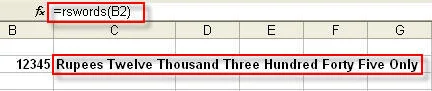
, and then click Excel Options.


Truly it is very useful for excel user in india.Thanks a lot to Creator.
ReplyDeleteThanks,
Harendra Kumar
Pune, India.
But this is not working in MS Office 2010.
DeleteRegads
Ambareesh
Hi, Thanks.
DeleteUser can also try free GWORD addin formula which auto convert numbers or amount to words or rupees.
Download Link - www.xltool.in | www.gwordformula.blogspot.com
Sir,
ReplyDeleteThis function is good but one problem is rise i.e. if I add Rs. in figure than other link columns & row found error i.e. they do not calculate total, percantage or etc.
If u want to use Rs. or new rupees symbol then first download "Rupees Foradian" and install it in the Font. Then in excel you choose your number by selecting the column then open format cell and then click on the currency button and use symbol none and separate ",". Now you choose custom menu and in the custom menu you type on the begin
Delete"` " along with other text. After than you choose all the column font as Rupees Foradian.
If you what old "Rs." then you simply choose select column then format cell and then currency and separate"," . Now you choose custom menu and in the custome menu you type on the begin "Rs. " along with other text.
You use all the formula and it doesn't arise any error.
dear HArdbdra,
ReplyDeleteamount in figures and words are normally used in separate cell. so for calculation use amount in figure
great work... thanks a lot....... Keep up....
ReplyDeletethanks it is Truly very useful for excel user in india.Thanks a lot to Creator.
ReplyDeleteIndia
Thanks !
ReplyDeletesatish_asian2000@yahoo.com
I didn't find the download link
ReplyDeleteThis comment has been removed by the author.
DeleteThis comment has been removed by a blog administrator.
Deletedo well something is missing
Deletethanks a lot...... super like
ReplyDeleteDear sir it will not give the result in words if the figures are in negative. please do the same in negative case and give updated version of this.
ReplyDeletethanks
kalpesh shah
9890208175 / 8767131113
kalpeshyshah@rediffmail.com
Sir, Please change Rs. sign to New Indian Rupee symbol when wirting in words
ReplyDeleteHey........ friend this is not working in excel 2007.Please give me the function which can convert the currency in INR in excel 2007, pleeeeeese.
ReplyDeleteIt is also working in Microsoft excel 2007 ,Kindly follow the instruction given above Sr no 1-5 carefully
DeleteIt will work, simply change its extension from .xls to .xla
Deletevnsukla@yahoo.com
Its a fantastic....
ReplyDeleteFinally its done.. Thanks for the link, great job! Keep it up
ReplyDeleteGreat.......its a very usful thanks a lot
ReplyDeleteWhat is Service Tax Rate to Service Receiver (if Service Receiver is a Company) on Rent a Cab service received from Service provider (if service provider is a Proprietorship firm)
DeleteI am having two properties, one is self occupied, and other is let out.
ReplyDeletemy annual income is below 5 lacs, and interest from saving is also below Rs. 10,000.
I have availed home loan on both the houses, and want to claim interest and principal paid.
1) whether I have to file return for f.y. 2011-12 and a.y 2012-13.
2) if yes, which return Itr-1 or itr-2
3) where to claim lossess of house property
4) is it in sr. no. 6 of part-B of TI computation of Income of ITR-2.
and sch-CYLA by deducting the loss from salary.
5) where to claim principal paid for emi for the year.
please reply. thanks
Point wise answer is given below.
Delete1.You have to file return for Fy 2011-12
2.ITR-2
3.You have to fill sch HP house property read how to fill here
http://www.simpletaxindia.net/2012/07/house-property-income-tax-return-filing.html
4. Fill ITR form in excel sheet figure will be filled automatically
5. principal is covered u/s 80C sch VIA in itr-2
thanks for quick reply.
DeleteThis comment has been removed by the author.
ReplyDeleteHi suresh,
ReplyDeletei dont want to show the paise thing in the figures ,i just want round of figures
how is is possible?
here is a small macro. Just paste it and use it:
DeletePublic Function f2w(num As Long) As String
Dim intpart As Long, decpart As Integer, park As Integer, zastring As String
zastring = ""
intpart = num
If intpart = 0 Then
zastring = "Rupees nil "
ElseIf intpart < 2 Then
zastring = "Rupee "
Else
zastring = "Rupees "
End If
park = Fix(intpart / 10000000)
zastring = zastring & getword(park, "crore ")
intpart = intpart Mod 10000000
park = Fix(intpart / 100000)
zastring = zastring & getword(park, "lakh ")
intpart = intpart Mod 100000
park = Fix(intpart / 1000)
zastring = zastring & getword(park, "thousand ")
intpart = intpart Mod 1000
park = Fix(intpart / 100)
zastring = zastring & getword(park, "hundred ")
park = intpart Mod 100
zastring = zastring & getword(park, " only")
f2w = zastring
End Function
Function getword(t3 As Integer, plas As String) As String
If t3 = 0 Then
getword = ""
ElseIf t3 < 20 Then
getword = retteen(t3) & " " & plas
Else
getword = retten(Fix(t3 / 10)) & " " & retteen(t3 Mod 10) & plas
End If
End Function
Function retteen(t2 As Integer)
Dim teenstr As String
teenstr = "one two three four five six seven eight nine ten eleven twelve thirteen fourteen fifteen sixteen seventeeneighteen nineteen "
If t2 = 0 Then
retteen = ""
Else
retteen = Trim(Mid(teenstr, (((t2 - 1) * 9) + 1), 9))
End If
End Function
Function retten(t1 As Integer)
Dim tenstr As String
tenstr = "twenty thirty forty fifty sixty seventyeighty ninety "
retten = Trim(Mid(tenstr, (((t1 - 2) * 7) + 1), 7))
End Function
Please tell how to use this
DeleteGreat Boss. !!!!
ReplyDeleteThanks a lot. It is very helpful
ReplyDeleteTHIS HELPS ME TO WRITE NUMBER INTO WORD FORMAT I AM VERY THANK FUL TO YOU
ReplyDeletevery nice to see this feature simplified as add ins Thanks a lot...keep post something useful to every one aware of it.
ReplyDeleteThis comment has been removed by a blog administrator.
ReplyDeleteThanks A Zillion Mr. Suresh
ReplyDelete- Nikhil Neelakant
Working Fine Thanks alot
ReplyDeleteThank you, it is very useful.
ReplyDeleteDear Sir,
ReplyDeleteIs it possible to remove "Rs" from starting so that value can be taken as " 300,000.00" if yes plz let me know at
Good One
ReplyDeleteI AM NOT ABLE TO USE.....
ReplyDeletePLEASE HELP
I HAVE EXCEL 2010
sir
ReplyDeletewhen i transfered this file to another pc where this addin is not installed then this is not running
it is already being mentioned in limitation given above. However in 2007 and above you can save file with macro's which is saved with ext. xlsm .if you save file with macro then it will work in other computer also.
DeleteDear Sir,
ReplyDeleteThe function to covert courtesy amount (in figures) to legal amount (in words) is indeed good work.
However, for formatting of amount in figures as per indian practice of lacks and crores is simply provided in OS itself since Windows 98. Go to Control Panel, Regional & Language Options and there customize the numbering formats (under number groupings) which is self explanatory. This is one time step and then no need to covert or re-convert, and it affects display of all the files.
Regards,
Manoj Agarwal - 9937041788
Dear sir,
ReplyDeletePlease help me i m not sucess this task
Rohit
cool................ very very nice
ReplyDeleteVery good,
ReplyDeleteKindly give the suggestion to remove Rupees text from words
hello all,
ReplyDeletewhen i click on the download link -
http://www.dq.winsila.com/wp-content/uploads/2007/03/SureshAddin.xla
it will open a new page with the zunk character.
unable to download, please help
but its working well when we have click ,so pls provide your mail address
Deleteim using firefox, thats why face the problem, i tried using chrome and IE, both working fine. thnx for such a nice add-on. :)
DeleteHey This is Amazing is this feature also available in MS Word ? what am I supposed to do if I want this to work in MS Word ?
ReplyDeleteThanks
Thank you, it is very useful.
ReplyDeleteThank you ...its great and very useful..
ReplyDeleteThanks a Lot... It is Very Helpful...............
ReplyDeletegreat work... thanks a lot....... Keep up.... Please prepare Under rupees -------------------------- only ) by enhancing on number. It will be used to place protective words in preparing bills
ReplyDeleteZillion Thanks ....
ReplyDeleteThanks a lot!
ReplyDeletevery helpfull.....many many thanks....but ask u again same q....remove "Rs" from starting...?? i need only words ....please help
ReplyDeletevery helpfull.....many many thanks....but ask u again same q....remove "Rs" from starting...?? i need only words ....please help
ReplyDeletevery helpful... thanks a lot...
ReplyDeleteafter instulation,how to use this formula
ReplyDeleteVery very usefull and helpfull please keep it
ReplyDeleteRamesh, Attur
Dear Sir,
ReplyDeleteIts nice and useful function for us. Thanks a lot for this. I also requested you to please add New Symbol for Rs. in that function and also in words some changes like : 50.56 (Rupees Fifty and Paise Fifty Six only) is may kindly be corrected as (Rupees Fifty and Fifty Six Paise only).
I also requested you to please give me add-in for date to words function like : 29-12-2013 (Twenty Nine December Two Thousand Thirteen).
my Email ID- bapibiru@gmail.com
Frankly I also pay the requisite amount if it not free.
Thanking you.
J.K. Satapathy
Thanks.
ReplyDeleteAlso we can Try this Excel Add-in - CLICK
http://www.xl.nikash.in/2012/06/convert-number-to-english-indian-rupees_8693.html
Dear
ReplyDeleteThanks for your add ins this great, work great
thanks
thanks once again
Raj
Thanks sir,
ReplyDeletevery useful and important addins which are provided by you
Thanks lot again
How we get the new addins or excel creations of your?
I have added Suresh Add Ins on a file that is shared on a server. It is not a shared work book, just located on a server where more that one computer/user has access to it. However the formula does not seem to work when opened on the shared computers unless I again go in to each location of the equaction rswords() and type it in again. Why is this?
ReplyDeleteI am using suresh ad ins for the rswords(). equation. I have it in stalled on a workbook that is saved on a server. However when I access the same work book on another computer that is on the server, the equation dosent work. It shows the path as ='\\Server\logos letterhead\SureshAddin.xla'!RSWORDS(E24). I have to each time then go to that users computer and re enter the equation as rswords() in each cell that it is required to be used in. How to I avoid this problem?
ReplyDeleteThanks a lot.Its been lot of help.
ReplyDeleteHari Mohan
Thanks,
ReplyDeleteIt's vary useful one.
Sir, I am using OPENOFFICE, is there such add in for open office too ?
If it is please let me know how can I download and install it?
Once again thanks.
Dinesh Parmar
link not work plz do the needful...
ReplyDeleteproveid the link
download Link now updated http://taxclubindia.com/simple/371505_1142517_sureshaddin.xla
DeleteThanks dear, it was very useful. Keep it up.
ReplyDeleteVery very Useful. Good work.
ReplyDeleteSir, it is very good Add-in .. thank you for providing the same.
ReplyDeleteThis is really helpful. Thanks a lot.
ReplyDeleteHi Guys,
ReplyDeleteThis is the well defined and customized micros program for Indian Rupee Value:
Function SpellNumber(amt As Variant) As Variant
Dim FIGURE As Variant
Dim LENFIG As Integer
Dim i As Integer
Dim WORDs(19) As String
Dim tens(9) As String
WORDs(1) = "ONE"
WORDs(2) = "TWO"
WORDs(3) = "THREE"
WORDs(4) = "FOUR"
WORDs(5) = "FIVE"
WORDs(6) = "SIX"
WORDs(7) = "SEVEN"
WORDs(8) = "EIGHT"
WORDs(9) = "NINE"
WORDs(10) = "TEN"
WORDs(11) = "ELEVEN"
WORDs(12) = "TWELVE"
WORDs(13) = "THIRTEEN"
WORDs(14) = "FOURTEEN"
WORDs(15) = "FIFTEEN"
WORDs(16) = "SIXTEEN"
WORDs(17) = "SEVENTEEN"
WORDs(18) = "EIGHTEEN"
WORDs(19) = "NINETEEN"
tens(2) = "TWENTY "
tens(3) = "THIRTY "
tens(4) = "FOURTY "
tens(5) = "FIFTY "
tens(6) = "SIXTY "
tens(7) = "SEVENTY "
tens(8) = "EIGHTY "
tens(9) = "NINETY "
FIGURE = amt
FIGURE = Format(FIGURE, "FIXED")
FIGLEN = Len(FIGURE)
If FIGLEN < 12 Then
FIGURE = Space(12 - FIGLEN) & FIGURE
End If
If Val(Left(FIGURE, 9)) > 1 Then
SpellNumber = "RUPEES "
ElseIf Val(Left(FIGURE, 9)) = 1 Then
SpellNumber = "RUPEE "
End If
For i = 1 To 3
If Val(Left(FIGURE, 2)) < 20 And Val(Left(FIGURE, 2)) > 0 Then
SpellNumber = SpellNumber & WORDs(Val(Left(FIGURE, 2)))
ElseIf Val(Left(FIGURE, 2)) > 19 Then
SpellNumber = SpellNumber & tens(Val(Left(FIGURE, 1)))
SpellNumber = SpellNumber & WORDs(Val(Right(Left(FIGURE, 2), 1)))
End If
If i = 1 And Val(Left(FIGURE, 2)) > 0 Then
SpellNumber = SpellNumber & " CRORE "
ElseIf i = 2 And Val(Left(FIGURE, 2)) > 0 Then
SpellNumber = SpellNumber & " LAKH "
ElseIf i = 3 And Val(Left(FIGURE, 2)) > 0 Then
SpellNumber = SpellNumber & " THOUSAND "
End If
FIGURE = Mid(FIGURE, 3)
Next i
If Val(Left(FIGURE, 1)) > 0 Then
SpellNumber = SpellNumber & WORDs(Val(Left(FIGURE, 1))) + " HUNDRED "
End If
FIGURE = Mid(FIGURE, 2)
If Val(Left(FIGURE, 2)) < 20 And Val(Left(FIGURE, 2)) > 0 Then
SpellNumber = SpellNumber & WORDs(Val(Left(FIGURE, 2)))
ElseIf Val(Left(FIGURE, 2)) > 19 Then
SpellNumber = SpellNumber & tens(Val(Left(FIGURE, 1)))
SpellNumber = SpellNumber & WORDs(Val(Right(Left(FIGURE, 2), 1)))
End If
FIGURE = Mid(FIGURE, 4)
If Val(FIGURE) > 0 Then
SpellNumber = SpellNumber & " PAISE "
If Val(Left(FIGURE, 2)) < 20 And Val(Left(FIGURE, 2)) > 0 Then
SpellNumber = SpellNumber & WORDs(Val(Left(FIGURE, 2)))
ElseIf Val(Left(FIGURE, 2)) > 19 Then
SpellNumber = SpellNumber & tens(Val(Left(FIGURE, 1)))
SpellNumber = SpellNumber & WORDs(Val(Right(Left(FIGURE, 2), 1)))
End If
End If
FIGURE = amt
FIGURE = Format(FIGURE, "FIXED")
If Val(FIGURE) > 0 Then
SpellNumber = SpellNumber & " ONLY "
End If
End Function
where do i paste this code in computer
Deletei tried in visual basic but not worked. i want to know where is the actual position for copy this code.please help
if we have to convert the amount more than crore then it does not work hence how can we convert the amount more than crore
Delete2526.01
Deleteresult should be -> two thousand five hundred twenty six and one paise only.
kindly make vba coding which include word "and one paise only".
Thanks .Working nicely. However, the letters are in capitals.It may be converted to proper case
DeleteThis is Just an example , you should download suresh xl add in from page 2 above
Deletegreat work... thanks a lot....... Keep up....
ReplyDeleteThanks for the Add-in. I have a question. Is there any option to insert Rupee Symbol for Rs.
ReplyDeleteThanks in advance
this Add-in is good. Could we use it MS Word?
ReplyDeletei have not got the answer whether I could use this ADD-IN in MS WORD
ReplyDeleteNo ,you can not use this in MS word
DeleteCan you add Rupee Symbol ???? in this formulae
ReplyDeletelink not working
ReplyDeleteLink is given on page -2 or click facebook like or tweet
DeleteGreat job! Very useful :)
ReplyDeleteHi,
ReplyDeleteIt is an awesome addin. I however want to know why lakhs is being shown as lakh(s)
Hi,
ReplyDeleteIt is an awesome addin. I however want to know why lakhs is being shown as lakh(s)
Pls send me the file sureshadd over my email: rajesh061981@gmail.com as I am unable to download from your site. I'll be very thankful to you.
ReplyDeletesent
DeletePls send me the file sureshadd in over my email: sumitguha1978@gmail.com
ReplyDeleteas I am unable to download from your site. I'll be very thankful to you.
paise comes after last "and". Paise should come befor "only".
ReplyDeletePlease help
DeleteGreat Job....Thanks a Lot.....
ReplyDeletethe function REVINR(xx) IS WORKING IN EXCEL 365?? pLS HELP
ReplyDeleteany sortcut key available this formula
ReplyDeletei want figure word in bracke ( Rs.................... Only)
ReplyDeletePls send me the file sureshadd over my email: kudekarpranav01@gmail.com as I am unable to download from your site. I'll be very thankful to you.
ReplyDeleteIf we close the excel and then again restart after some time, then this add in is not working . Can you help on this ? It is functioning as long as I am using excel. Once i close the excel and after some time starts working again, then add in is not functioning. Plz support
ReplyDeleteHii sir
ReplyDeletevery nice, may please get in marathi also
ReplyDeleteVery nice and helpful.
ReplyDeleteThanks alot.
i cant download, please help
ReplyDeleteSir the code is working perfectly in excel but it doesnt work in google sheets
ReplyDeletecan you help me with that how should i add it in google sheets and excel both